
Web Clipping

Capture web pages, fragment notes, AI chats, reading sessions, and video sessions as structured Markdown for Obsidian.
Web Clipping

Notes

AI Chats

Reading

Video Notes
 Install the extension in Chrome
  Install the extension in Firefox
  Install the extension in Edge
 Made for your Obsidian vault
Zendio lets you clip, highlight, and annotate in the browser, then save the content and your thoughts as Markdown for Obsidian.
THE FIVE MODES
Choose a mode to see the workflow and what ends up in your note.
Select a passage, open the clipping panel, and write your comment while the source is still in front of you. Save the quote, your comment, and its source together.
HOW TO USE IT
Selected text, your comment, and a link to the original passage. Comments can use Markdown footnotes.
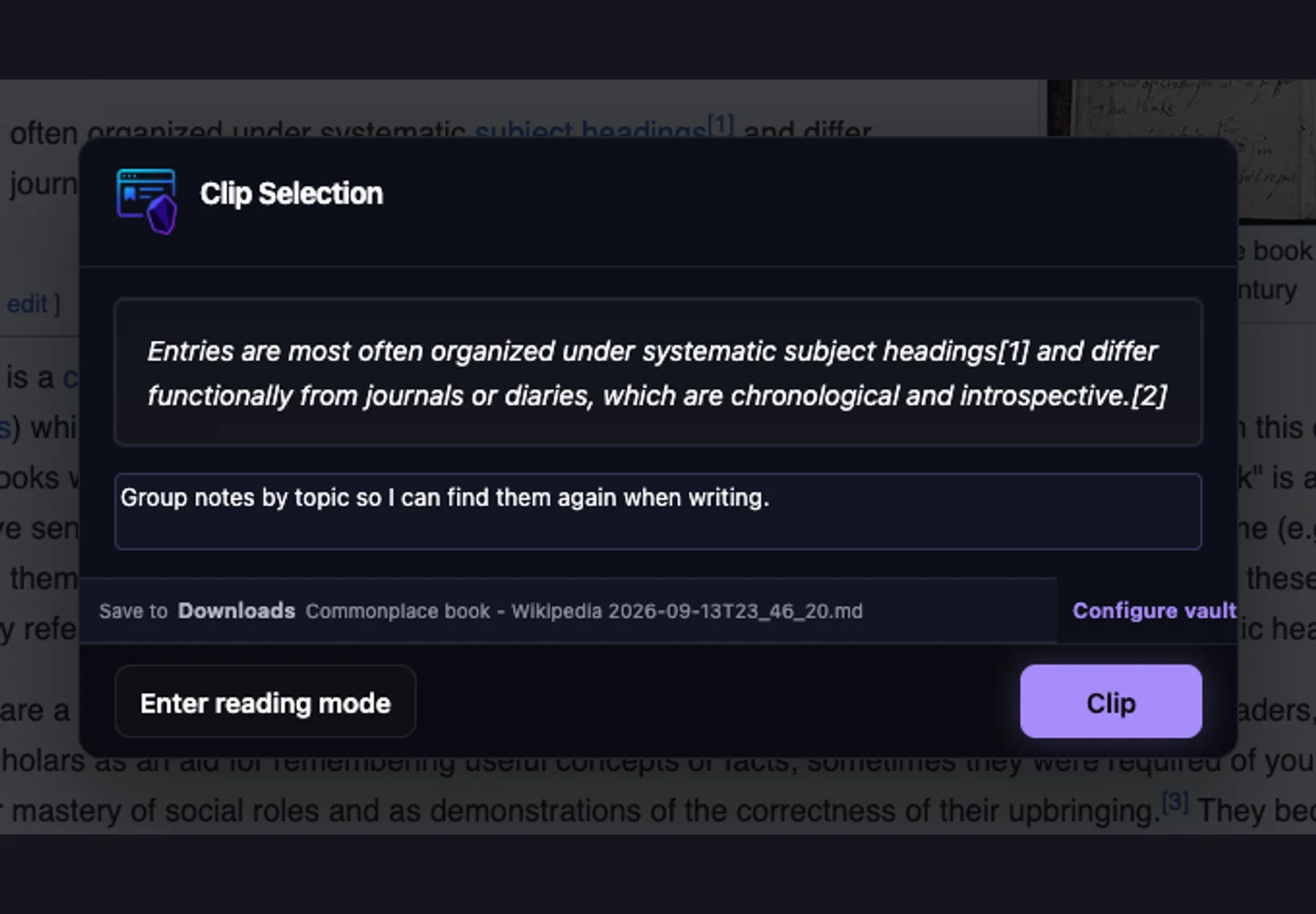
A passage worth keeping.¹
¹ My note: why this passage matters to me.
Export structure · illustrative content
Start reading mode to highlight several passages and add comments on the current page. Highlights follow their order in the article. Select a number to revisit its passage, then export when you finish.
HOW TO USE IT
Highlights only collects excerpts, comments, and source links. Full article keeps the cleaned body with your highlights and footnotes in place.
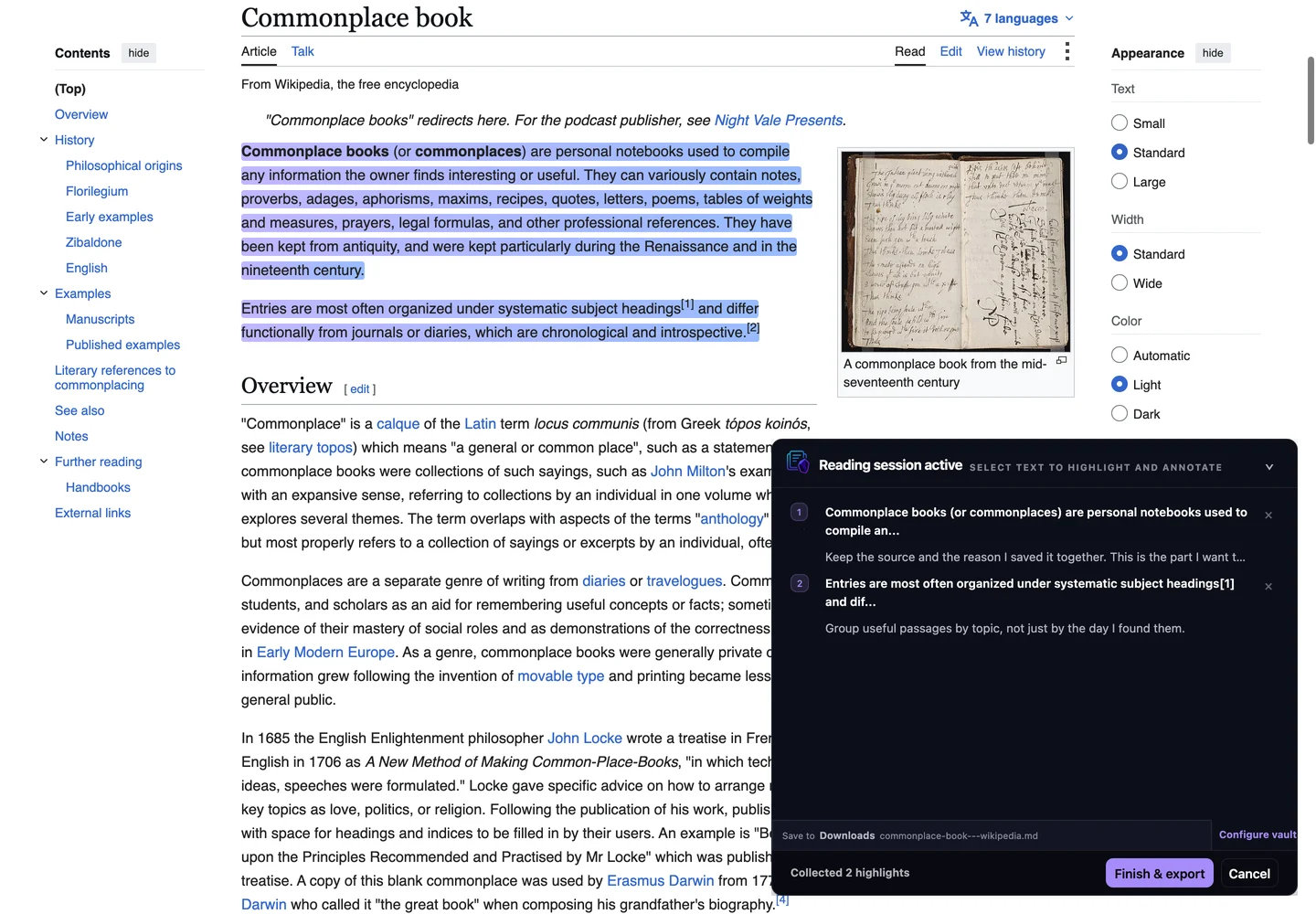
The first passage, in article order.¹
Another idea to revisit.²
¹ My understanding. ² An example for my next draft.
Export structure · illustrative content
Open video mode on YouTube or Bilibili to record timestamps, add notes, and capture screenshots. Selected page text and useful comments can join the same video note.
HOW TO USE IT
Time-ordered notes, selected screenshots, and captured text. Timestamp links in the exported note take you back to the matching video moment.
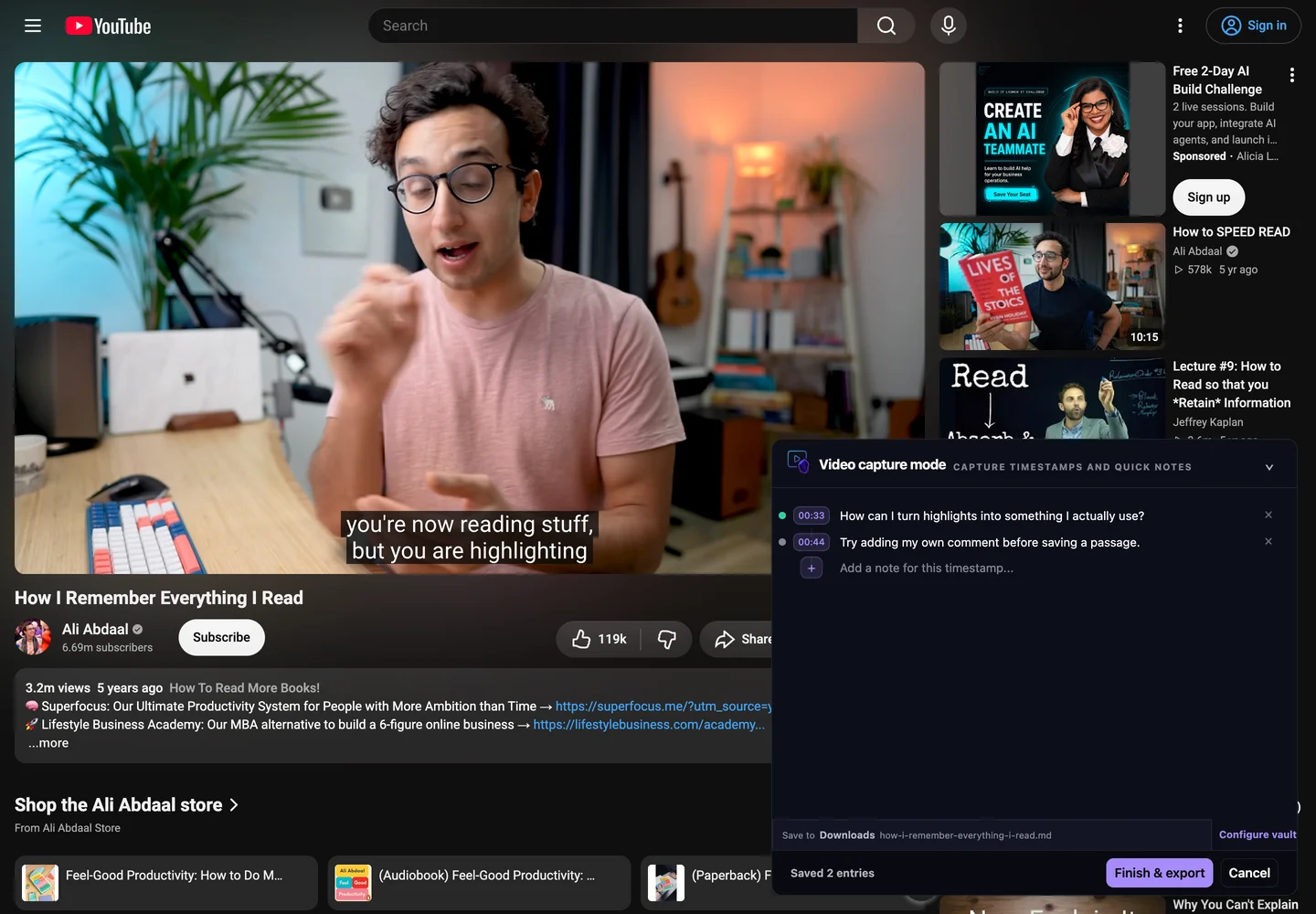
Video timestamps
00:33 Revisit this idea later.
00:44 Keep this example.
Selected screenshots export as attachments.
Export structure · illustrative content
Right-click an unselected part of an article to clip it. Zendio extracts the body and converts it to Markdown, with its title, source, and capture time.
HOW TO USE IT
Editable article text and source information, with Markdown structure for code, tables, and lists. Extraction on complex pages depends on their layout.
Article title
The extracted body stays editable, ready to quote or organize in your notes.
Content structure stays with it
Headings, lists, code blocks, and tables.
Export structure · illustrative content
Clip a conversation on a supported AI platform. Zendio uses a platform-specific parser to keep user prompts and AI replies in order, including code blocks and tables.
HOW TO USE IT
An ordered conversation with message roles. Supports ChatGPT, Claude, Gemini, Copilot, Perplexity, Tongyi/Qianwen, DeepSeek, Kimi, Doubao, and Monica.
1 USER
Could you explain this concept?
2 ASSISTANT
Replies stay in message order, with the formatting of their code and tables.
Export structure · illustrative content
Demo sources: Wikipedia ( CC BY-SA 4.0 ) and Ali Abdaal on YouTube . Notes are examples; no creator endorsement is implied.
YOUR VAULT, YOUR STRUCTURE
Set up your structure once. Keep your next capture consistent with the notes already in your vault.
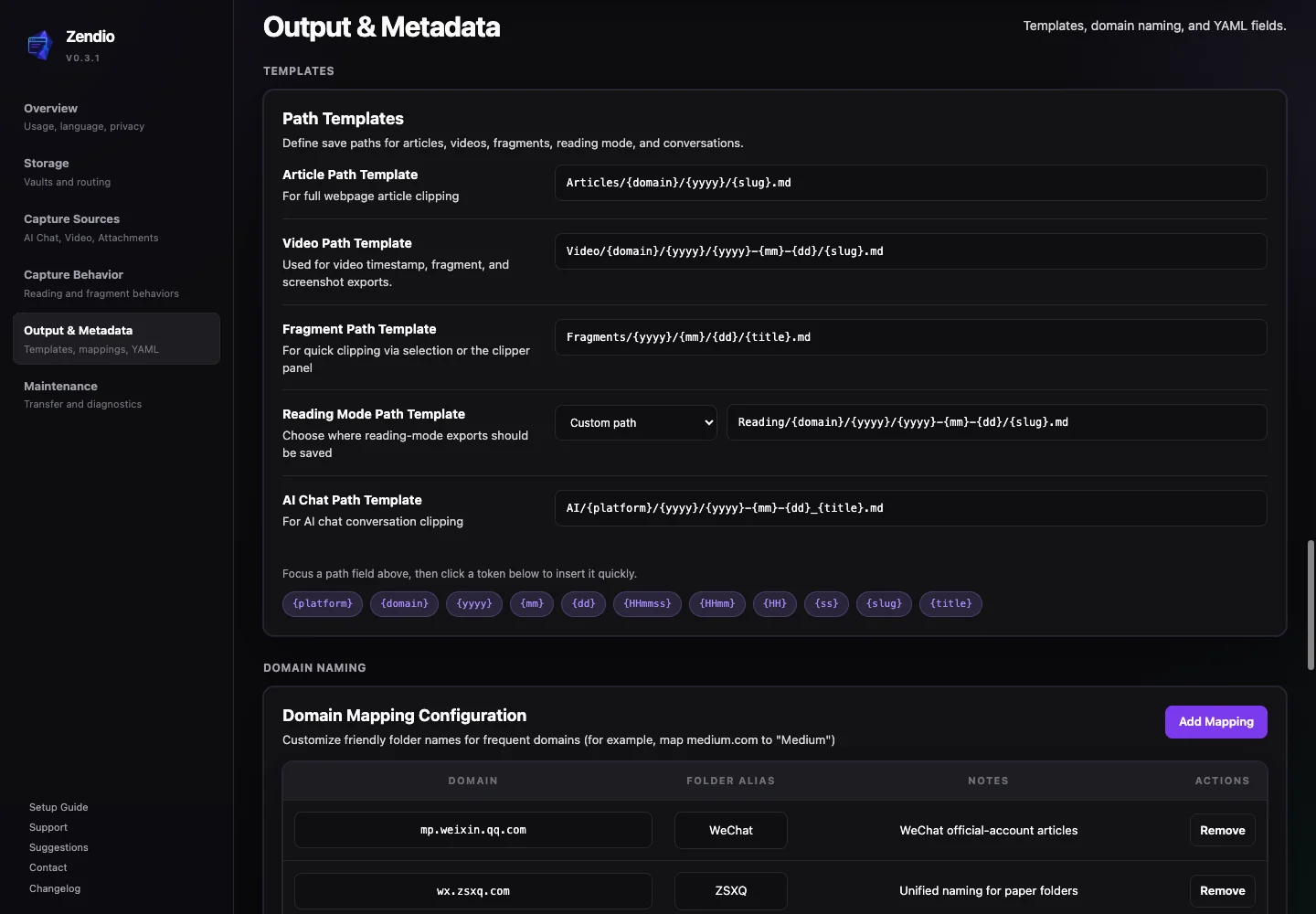
Articles, fragments, reading notes, videos, and AI chats have their own path configuration.
Match domains, keywords, or URL patterns to configured vaults, with a default vault for everything else.
Configure YAML fields by content type and preview their output in Settings.
Getting started
Choose your local vault folder and grant access. You can write notes directly without a REST URL or API key.
To write into a vault, enable Local REST API in Obsidian, then enter its URL and API key in Zendio.
You can also download Markdown files and place them in your vault yourself. Your notes remain ordinary, editable files.
Obsidian Ecosystem
For REST-based vault writes, use Local REST API .
Annotation highlights work better together with the Obsidian plugin Sidebar Highlights .
Video screenshot attachments work better together with the Obsidian plugin Custom Attachment Location .
Product Story
This product was built by the author personally together with Codex, with the hope of making a reliable and useful tool.
If you find any errors, poor experiences, or product suggestions, please submit feedback through GitHub issue , or through  Scan with Xiaohongshu to join the user group .